


Why Files Won’t Download or Just Disappear? A Complete Guide for Phones & Computers
Why Files Won’t Download or Just Disappear? A Complete Guide for Phones & Computers
Table of Contents
Help! I clicked “Download,” but the file is nowhere to be found!
If this has happened to you — whether it’s a sewing pattern, an ebook, or a document — you are not alone. This is one of the most common tech frustrations people experience today.
The good news? In 99% of cases, the file isn’t lost. You’re just looking in the wrong place, or your device opened it instead of saving it.
Heads up for mobile users: If you downloaded using the “1. All files from Cloud ☁” link, your phone received a ZIP archive — not a file named after your stained glass pattern. It looks something like drive-download-20240312.zip. Keep this in mind when searching for your download!
In this guide, we’ll walk through every possible reason across all devices — iPhones, Android phones, Windows PCs, and Macs — so you can finally find your files and get back to your project.
1. The #1 Reason (You’re Probably Looking in the Wrong Folder)
This is the most common scenario: The file saved successfully, but it went to a folder you didn’t expect.
Every device has a default “Downloads” folder. Unless you manually choose another location each time, this is where files live.
How to Find Your Downloads Folder:
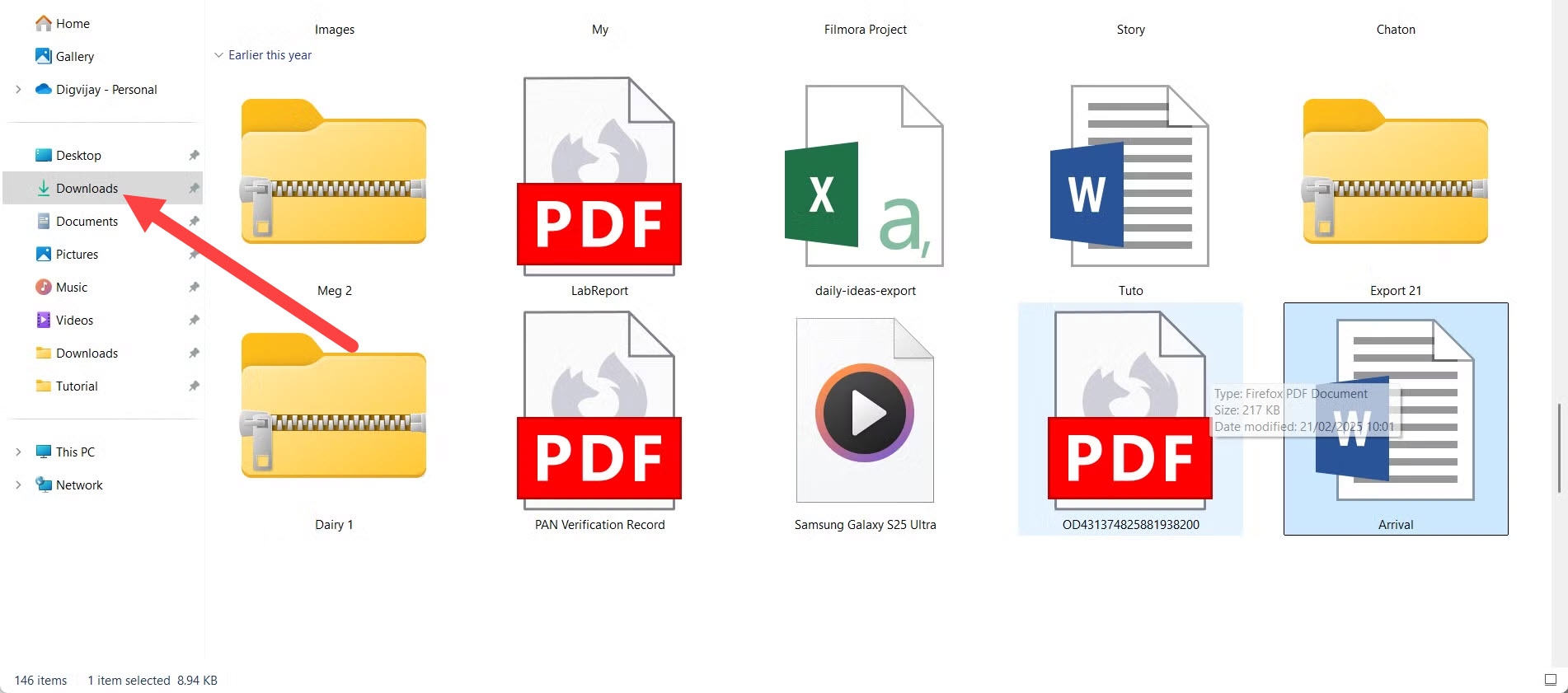
- On a Computer: Look for a folder named “Downloads” . It’s usually in your File Explorer (Windows) or Finder (Mac) sidebar.
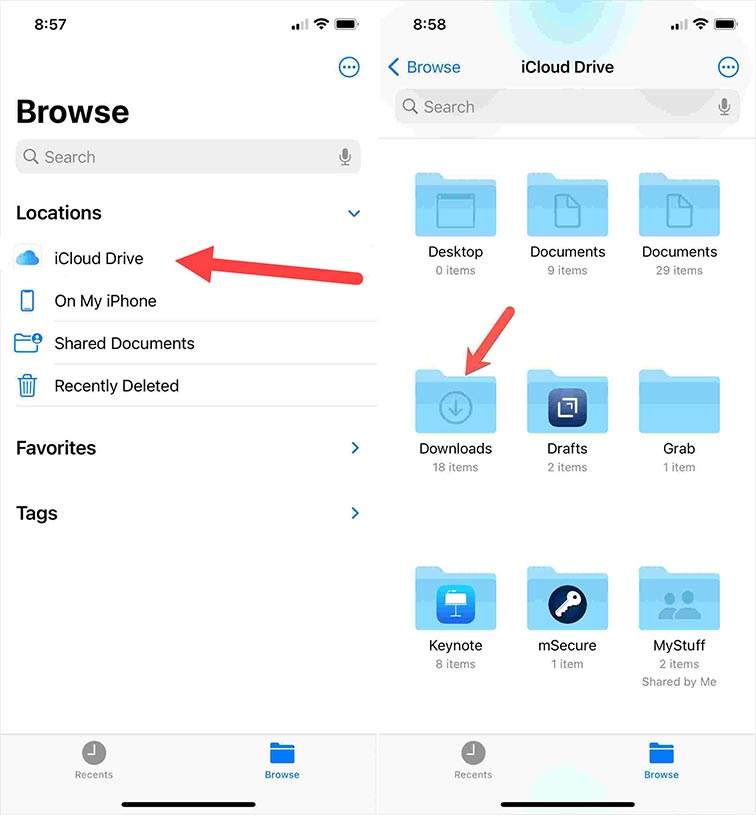
- On an iPhone: Open the “Files” app. Look inside “On My iPhone” or “iCloud Drive” for a folder named “Downloads.”
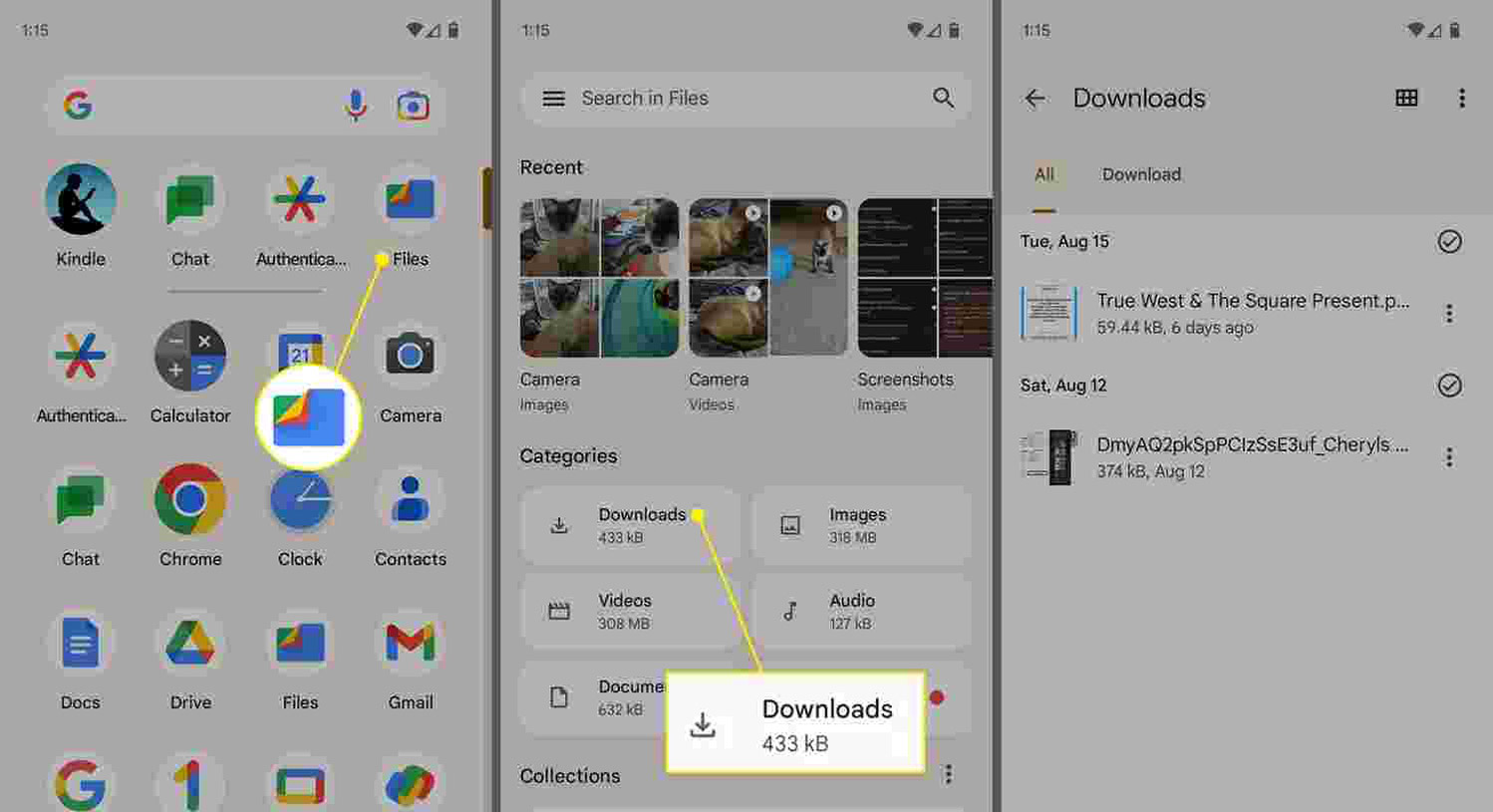
- On an Android: Open the “My Files” or “File Manager” app. Look for a folder named “Download” or “Downloads” (usually in Internal Storage).
Quick Tip: Use the search function on your device! Type the name of the file or just “.pdf” to see if it saved somewhere.
2. Scenario #2: The File Opened in Your Browser (But Didn’t Download)
You wrote: “Seems like all I can do is print them.” This is the second most common issue.
On many websites, when you click “Download,” the file doesn’t go to a folder. Instead, it opens in a new browser tab. You see the pattern or document on your screen and think you need to print it. But you actually need to save it from that tab!
How to Save a File That Opens in Your Browser:
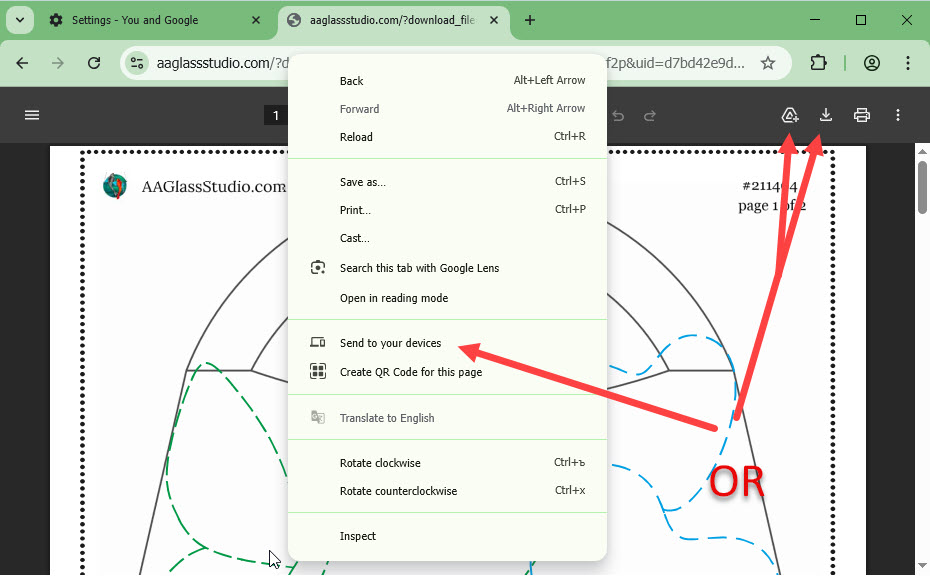
- Look for the toolbar. Hover your mouse at the bottom or top of the opened file. A toolbar should appear.
- Find the save icon. It usually looks like a floppy disk 💾 or a downward arrow ⬇️.
- Click it. Choose “Save As…” and pick a folder you’ll remember (like your Desktop or a new folder called “My Patterns”).
- Alternatively, right-click. Right-click directly on the document image and select “Save Image As…” or “Save PDF As…” .
3. For Computer Users: Windows & Mac
Here are the most reliable methods and settings to check on your desktop or laptop.
3.1 Check Your Browser Settings (Windows & Mac)
Your browser is the gatekeeper. It decides where files go.
In Google Chrome:
- Click the three dots in the top-right corner.
- Go to Settings.
- On the left, click Downloads.
- Check the “Location” field. This is the exact folder where your files are going. If you want, you can click “Change” to pick a new, easy-to-find folder.
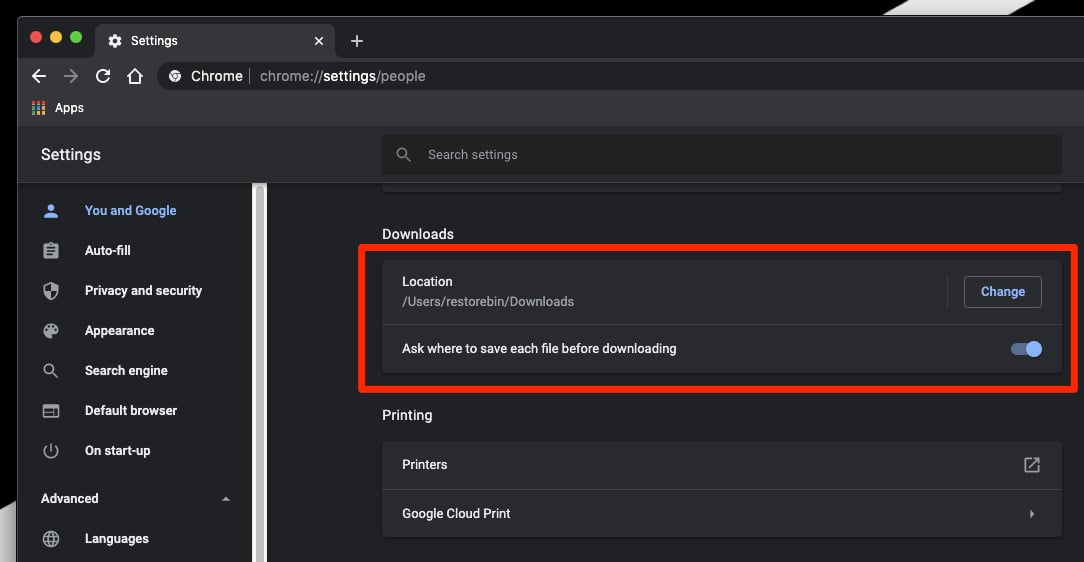
Chrome Downloads settings showing location configuration
In Safari (Mac):
- Open Safari.
- In the top menu bar (next to the Apple logo), click Safari -> Settings (or Preferences).
- Go to the “General” tab.
- Look for “File download location.” If it says “Ask for each download,” that’s perfect. If not, see which folder is selected.
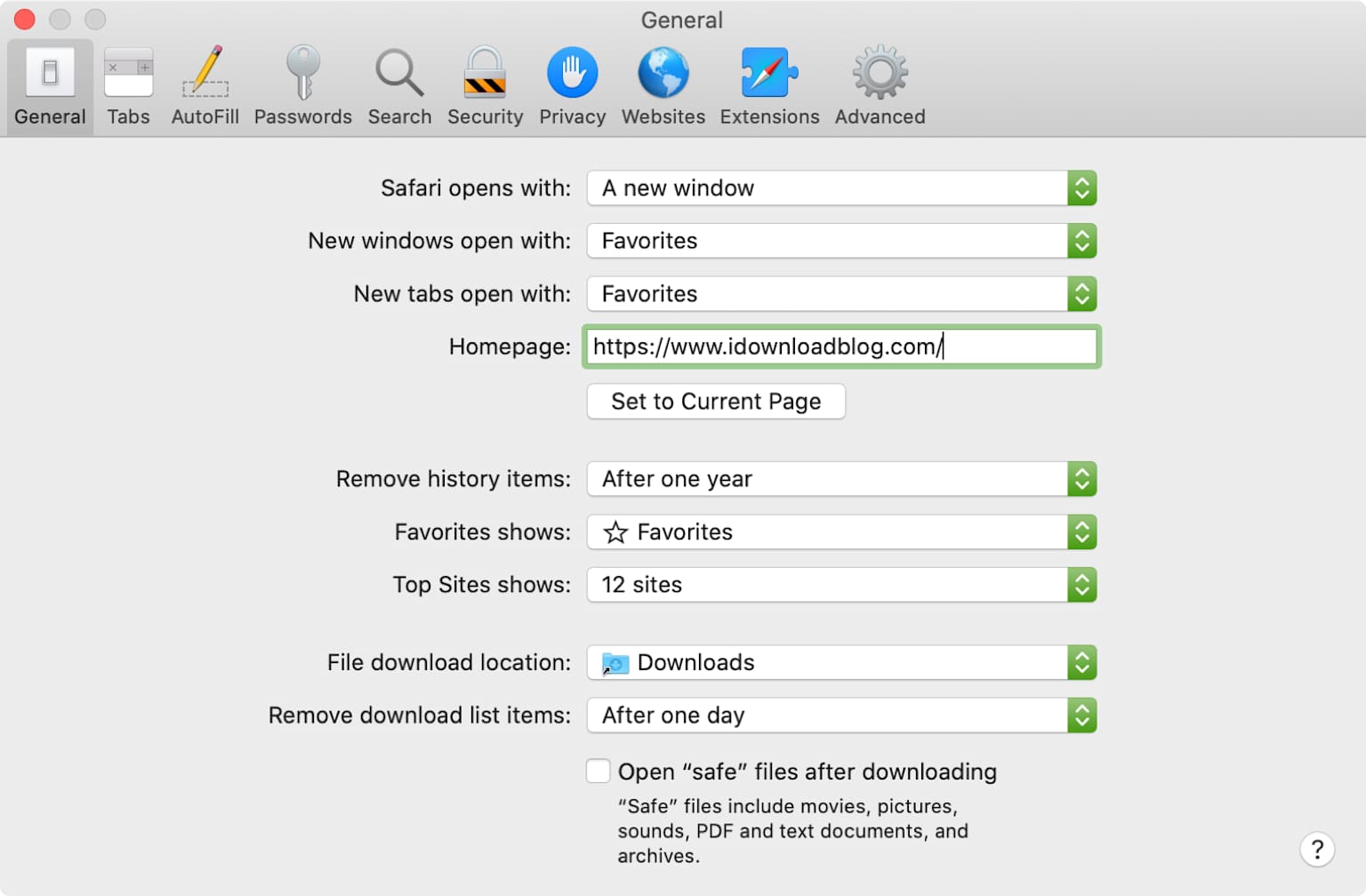
Safari General preferences on Mac showing download location settings
3.2 The “Right-Click” Trick (The Most Reliable Method)
This method bypasses all the confusion. It forces the file to download directly to your chosen folder.
- On the website, find the download button or link. Do not left-click it.
- Right-click the link (or tap your trackpad with two fingers).
- From the menu, select “Save Link As…” (Chrome) or “Download Linked File As…” (Safari).
- A window will pop up. Choose your folder (e.g., Desktop, Documents, or a new folder) and click “Save.”
3.3 Special Tips for Mac Users
- The Downloads Stack: If your Desktop is cluttered with a “Downloads” stack, your file might be hiding there. Click the stack to expand it.
- Use Spotlight Search: Click the magnifying glass in the top-right corner (or press
Command + Spacebar). Type the file name or just.pdf. If the file is on your Mac, Spotlight will find it and show you its location.
3.4 Special Tips for Windows Users
- Quick Access: Open File Explorer. Look in the “Quick Access” section on the left. It often shows your most recent files, including your recent download.
- Check the Browser’s Download History: In Chrome or Edge, press
Ctrl + Jto open your download history. You can click “Show in folder” next to any file to see exactly where it lives.
4. For Mobile Users: iPhone & Android
Saving files on a phone works differently than on a computer. Here’s how to master it.
4.1 For iPhone and iPad (iOS)
Apple devices are strict about where files go. You almost always need the Files app.
Where to look first:
- Open the Files app (the blue folder icon).
- Tap “Browse” at the bottom right.
- Look in two places:
- On My iPhone: Tap this, then look for a “Downloads” folder.
- iCloud Drive: Tap this, then look for a “Downloads” folder. (This is where Safari often saves files by default).
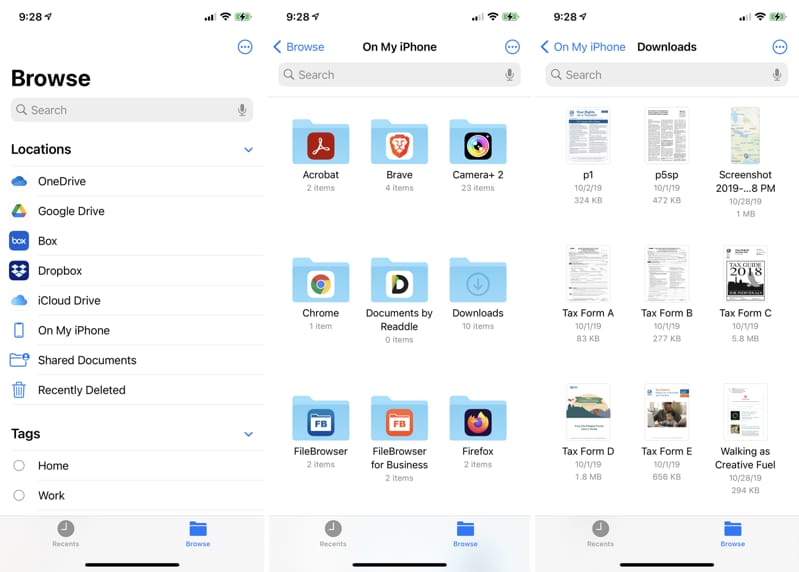
iPhone Files app showing Browse, On My iPhone, and Downloads folders
- Saving Images (Photos): If you downloaded a photo and can’t find it, it might be in your Photos app. Check the “Recents” or “Downloads” album.
- Pro Tip for Safari: In Safari settings, you can change the download location. Go to Settings > Safari > Downloads and choose a folder you can easily find, like “On My iPhone.”
4.2 For Android Phones
Android phones have a dedicated file manager app, though its name varies by brand (Samsung, Xiaomi, Google Pixel, etc.).
Where to look first:
- Open the app called “Files,” “My Files,” or “File Manager.”
- Look for a category or folder named “Downloads” or “Download.”
- This is almost always located in your Internal Storage.
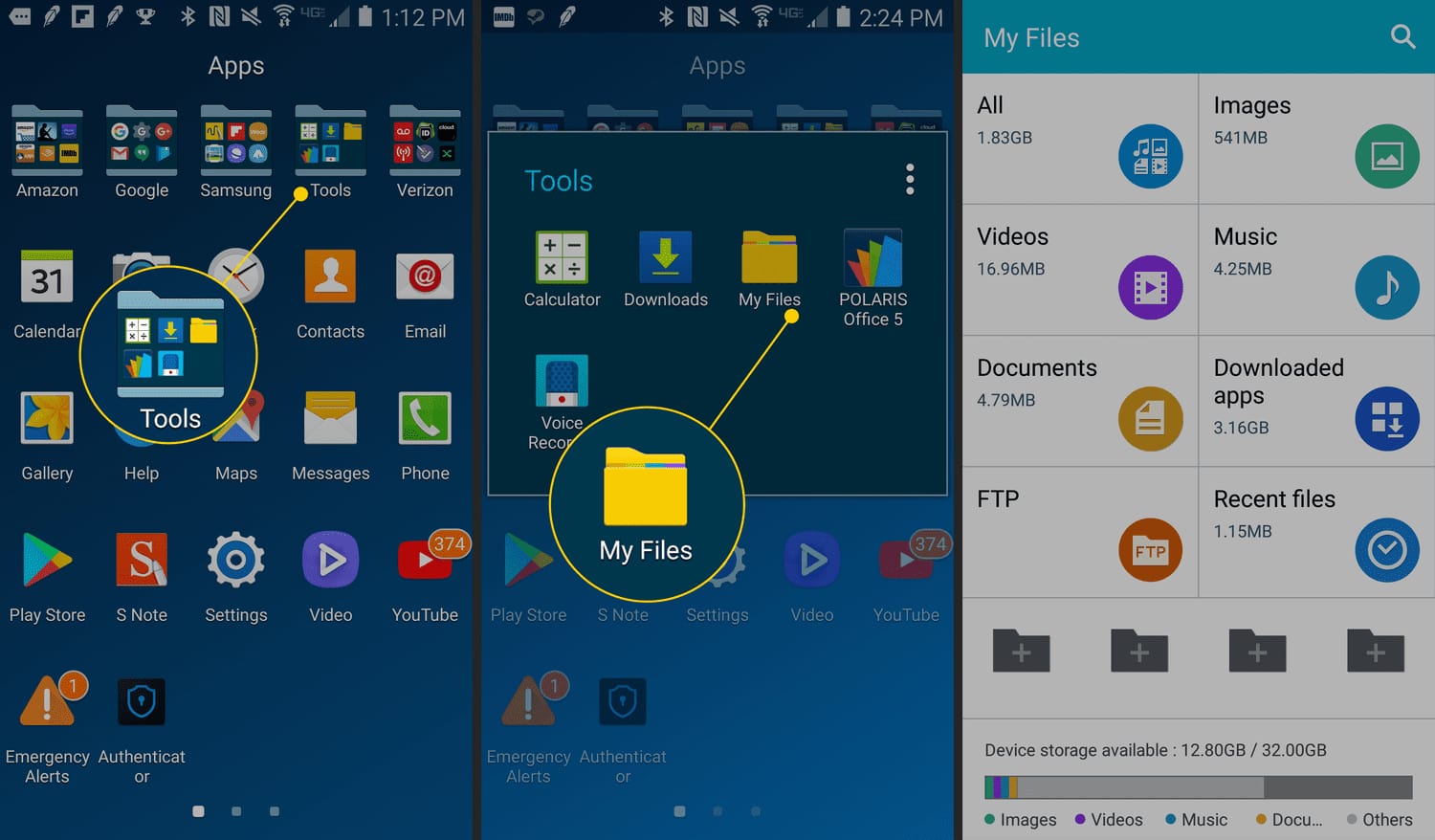
Samsung My Files app showing Downloads folder and storage categories
- Using the Search: Most file manager apps have a search bar at the top. Type the file name to find it instantly.
- For Samsung Users: Open the “My Files” app. Tap “Downloads” — it’s usually the first option in the categories list.
5. Troubleshooting Checklist (When Nothing Else Works)
If you’ve tried everything and still can’t download or find your file, run through this quick checklist:
- [ ] Is your storage full? Check if your computer or phone is out of space. You can’t save new files if the drive is full.
- [ ] Have you tried a different browser? If Chrome is acting up, try Safari, Firefox, or Edge. Sometimes browser extensions cause problems.
- [ ] Do you have a pop-up blocker? Very rarely, ad blockers or pop-up blockers can interfere with download prompts. Try pausing them for that site.
- [ ] Is the file type blocked? Some work or school networks block certain file types (like .exe files). If you’re on a work computer, this might be the issue.
Conclusion: Your Files Are (Probably) Safe
To summarize, the mystery of the missing download almost always has a simple solution:
- On a computer: Use the right-click “Save Link As…” method. It’s the most reliable way to put a file exactly where you want it.
- On a phone: Head straight to your Files app (iPhone) or My Files app (Android) and look for the “Downloads” folder.
- If it opens in a tab: Remember, that’s not the final destination. Look for the save icon or right-click to save it from there.
Happy downloading (and crafting)!